


Excel is part of daily work for students, accountants, business owners, and analysts. One of the first calculations everyone learns is subtraction. However, the subtraction formula in Excel is more powerful than it looks. It goes beyond simple minus signs and helps with reports, budgets, stock tracking, and performance analysis. When used correctly, it saves time and avoids costly mistakes.
Understanding how subtraction works in Excel builds a strong foundation for advanced formulas. Moreover, it improves accuracy when working with large datasets. Let’s break it down step by step, using simple language and real-life examples.
Table of Contents
ToggleUnderstanding the Basic Subtraction Formula in Excel
What Is the Subtraction Formula in Excel?
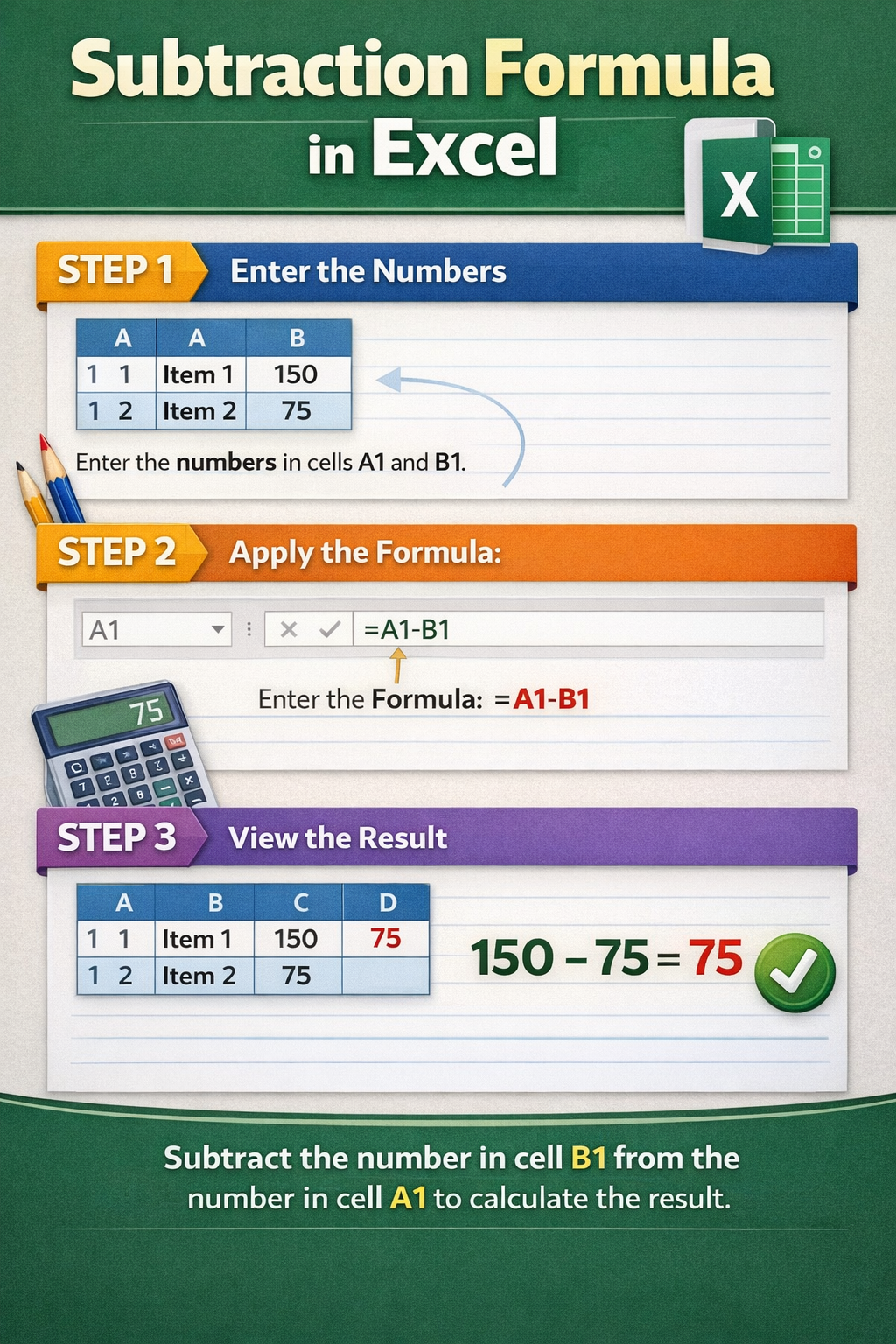
At its core, the subtraction formula in Excel uses the minus (-) operator. Unlike calculators, Excel does not have a separate SUBTRACT function. Instead, subtraction is performed directly within a formula using cell references or numbers.
For example, if you want to subtract 20 from 50, you type:
=50-20
Press Enter, and Excel returns 30.
However, in real work, numbers usually sit inside cells. Therefore, Excel allows you to subtract one cell value from another easily. This method makes calculations dynamic and error-free when values change.
Simple Cell-to-Cell Subtraction Example
Assume cell A1 contains 500 and cell B1 contains 275. To subtract B1 from A1, use:
=A1-B1
As a result, Excel displays 225. If either value changes, the result updates automatically. This flexibility is why Excel subtraction formulas are widely used in finance and data analysis.
In addition, you can subtract multiple cells in a single formula. For example:
=A1-B1-C1
This subtracts values from B1 and C1 together. However, clarity matters. Keeping formulas readable helps avoid confusion later.
Common Beginner Mistakes to Avoid
Many beginners forget to start formulas with an equals sign (=). Without it, Excel treats the entry as text. Another common error is mixing text and numbers, which leads to incorrect results. Therefore, always double-check cell formats when subtraction does not work as expected.
How to Subtract Numbers, Cells, and Ranges in Excel
Subtracting Fixed Numbers in Excel
Sometimes, you need to subtract a constant value from a cell. For example, removing a standard discount from prices. If A2 contains a product price and the discount is 50, use:
=A2-50
This approach is simple and effective. Moreover, it helps maintain consistency across multiple rows when copied down.
Subtracting Cell Values Across Rows and Columns
Excel shines when subtracting data across large tables. For instance, monthly sales data often requires subtracting expenses from revenue.
If revenue is in column B and expenses in column C, the profit formula in row 2 would be:
=B2-C2
Drag the formula down to apply it to all rows. As a result, you save hours of manual calculation.
Subtracting a Range Using SUM Function
Excel does not allow direct range subtraction like A1-A5. However, you can combine subtraction with the SUM function. For example:
=A1-SUM(A2:A5)
This formula subtracts the total of A2 to A5 from A1. It is especially useful in inventory management and budget planning.
Moreover, this method keeps formulas clean and easy to audit later.
Using Subtraction Formula with Dates, Time, and Percentages
Subtracting Dates in Excel
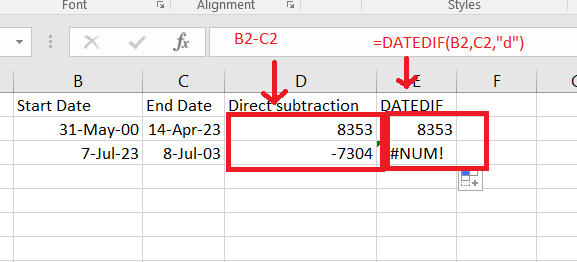
Excel stores dates as serial numbers. Therefore, subtracting two dates gives the number of days between them.
If start date is in A1 and end date in B1, use:
=B1-A1
The result shows the total days. This is useful for project timelines, delivery tracking, and attendance records.
However, ensure both cells are formatted as dates. Otherwise, the result may appear incorrect.
Subtracting Time Values
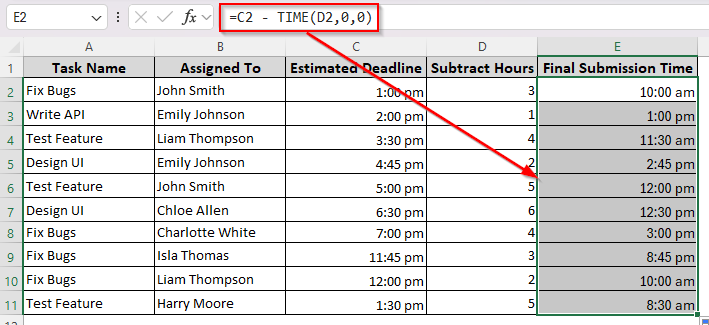
Time subtraction works similarly. For example, calculating working hours:
=End_Time – Start_Time
If an employee starts at 9:00 AM and ends at 5:30 PM, Excel returns 8:30 hours. This method is widely used in payroll calculations.
In addition, formatting the result as [h]:mm ensures accurate totals beyond 24 hours.
Subtracting Percentages Correctly
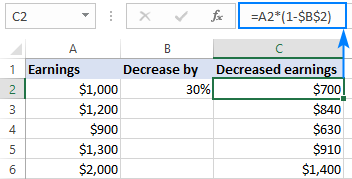
Subtracting percentages requires careful handling. For example, to reduce 2000 by 10%, use:
=2000-(2000*10%)
This returns 1800. Many users mistakenly subtract 10 directly, which gives wrong results. Therefore, understanding percentage subtraction is crucial for pricing and financial analysis.
Practical Uses of Subtraction Formula in Real-Life Excel Tasks
Financial and Accounting Applications

Accountants rely heavily on subtraction formulas. Calculating profit, loss, tax, and balance differences is impossible without them. For example, profit calculation:
=Total_Revenue – Total_Expenses
Moreover, bank reconciliation often uses subtraction to find mismatches between statements and records.
Inventory and Stock Management
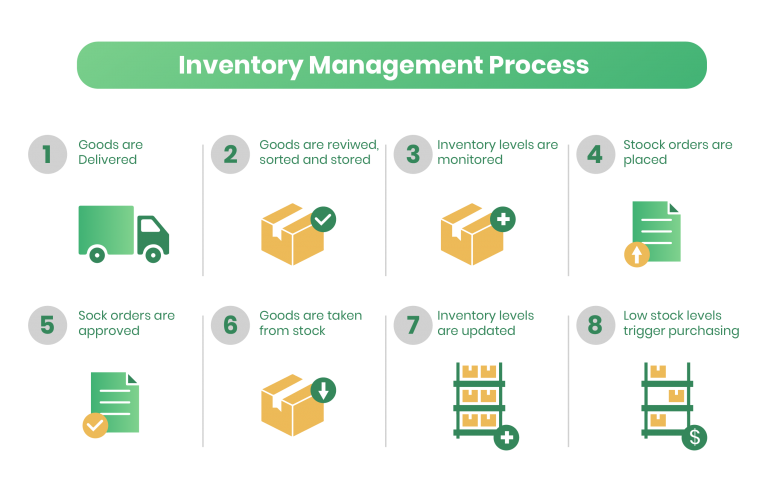
In inventory tracking, subtraction helps monitor remaining stock. If total stock is in A1 and sold units in B1:
=A1-B1
As a result, businesses know when to reorder items. This prevents overstocking or shortages.
Student Marks and Performance Tracking
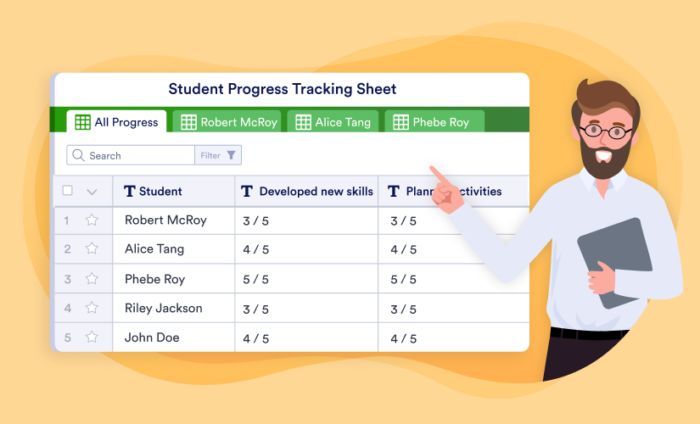
Teachers use Excel to calculate marks differences. For example, subtracting lost marks from total marks gives final scores. This method ensures transparency and quick evaluation.
In addition, subtraction formulas help compare performance across tests or semesters.
Advanced Tips to Improve Accuracy with Subtraction Formulas
Using Absolute References in Subtraction
When copying formulas, cell references may change. To avoid this, use absolute references with dollar signs ($).
For example:
=A2-$B$1
Here, B1 remains fixed even when the formula is copied. This is helpful when subtracting a fixed tax or discount rate.
Handling Errors with IF and IFERROR
Sometimes subtraction results in errors due to empty cells or incorrect data. Using IFERROR improves readability:
=IFERROR(A1-B1,0)
This formula returns zero instead of an error. As a result, reports look cleaner and more professional.
Combining Subtraction with Other Functions
Subtraction often works best with functions like SUM, AVERAGE, and ROUND. For example:
=ROUND(A1-B1,2)
This rounds the result to two decimal places. Such combinations improve precision, especially in financial models.
Moreover, clear formulas make collaboration easier within teams.
Frequently Asked Questions About Subtraction Formula in Excel
What is the simplest subtraction formula in Excel?
The simplest subtraction formula in Excel uses the minus sign. For example, =A1-B1 subtracts the value in cell B1 from A1. Always start with an equals sign to ensure Excel recognizes it as a formula.
How do I subtract multiple cells in Excel?
To subtract multiple cells, use a formula like =A1-B1-C1. Alternatively, subtract a range using =A1-SUM(B1:B5). This approach is common in budgeting and inventory calculations.
Can Excel subtract dates automatically?
Yes, Excel can subtract dates directly. When you subtract one date from another, Excel returns the number of days between them. Ensure both cells are formatted as dates for accurate results.
Why does my subtraction formula show an error?
Errors usually occur due to text values, empty cells, or incorrect formatting. Using IFERROR or checking cell formats often fixes the issue. Always verify that cells contain numeric values.
How to subtract percentages in Excel correctly?
To subtract a percentage, multiply the number by the percentage first. For example, =A1-(A1*10%). This method ensures accurate results, especially in pricing and discount calculations.
Is there a SUBTRACT function in Excel?
Excel does not have a dedicated SUBTRACT function. Subtraction is done using the minus operator (-). This method is flexible and works with numbers, cells, dates, and time values.
How do I keep a value fixed while subtracting in Excel?
Use absolute references with dollar signs, such as $A$1. This keeps the value fixed when copying formulas across cells. It is useful for fixed deductions like taxes or standard costs.
Final Thoughts
Mastering the subtraction formula in Excel makes daily work faster and more accurate. From basic calculations to complex reports, subtraction plays a vital role in decision-making. Once the basics are clear, combining subtraction with other Excel functions becomes effortless. Practice with real data, apply proper formatting, and use absolute references when needed. Over time, these small habits build confidence and efficiency in Excel.