

You don’t lose time because you are lazy.
You lose time because your tools don’t talk to each other.
Many people jump to Notion for productivity. Others stay inside Google Workspace but use only 20% of its power. As a result, they copy data, repeat tasks, search for files, and waste mental energy every day.
Here’s the truth:
If you already use Gmail, Drive, Docs, and Sheets daily, you are sitting on one of the most powerful productivity systems in the world — without realizing it.
This guide shows real Google Workspace productivity hacks that replace dozens of Notion workflows. At the same time, you will also learn where Notion is actually better, so you can combine both tools smartly instead of choosing one blindly.
Why Most People Underuse Google Workspace
Most users treat Google Workspace like basic office software:
- Gmail for emails only
- Drive for storage only
- Docs for writing only
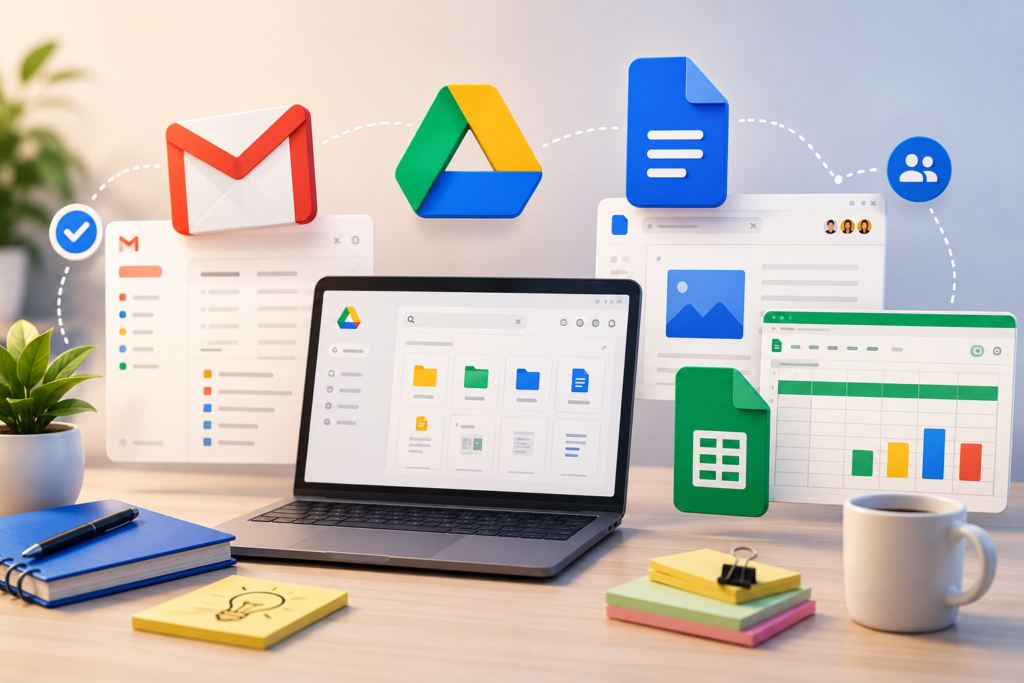
However, Google designed these tools to work as one system.
Because everything is connected by default, you can:
- Convert emails into tasks
- Turn Sheets into live dashboards
- Use Docs as shared SOPs
- Trigger automations without coding
This native integration is where Google Workspace productivity beats many standalone tools.
The Hidden Power of Gmail for Task Management


Gmail is not just an inbox. It is a lightweight task manager if you use it right.
Hacks you should start today
- Use Add to Tasks from any email
- Create filters + labels for auto-sorting
- Use Snooze as a follow-up system
- Star important mails as priorities
Example workflow
Client sends a requirement → Click Add to Tasks → It appears in your task list with a link to the email.
No copying. No switching apps.
Turn Google Drive into a Second Brain


Google Drive can act like your knowledge vault when organized well.
Folder structure that works (PARA method)
- Projects
- Areas
- Resources
- Archive
Small tricks, big impact
- Color code folders
- Star active files
- Use advanced search:
type:pdf,owner:me - Use Shared Drives for teams
You stop “searching for files” and start finding knowledge instantly.
Google Docs as a Live Knowledge Base


With headings, links, and smart chips, Google Docs becomes a dynamic wiki.
Use Docs for
- SOPs
- Training manuals
- Meeting notes
- Team guidelines
Features people ignore
- Document outline for navigation
- Smart chips for files, people, dates
- Version history for audits
- Comments for async collaboration
Notion is famous for wikis. Docs can do 80% of that with faster speed and zero learning curve.
Google Sheets as a Project and CRM System


Most people use Google Sheets only for numbers. That’s a mistake.
You can build:
- Project trackers
- Content calendars
- CRM
- Lead management systems
Must-use features
- Data validation (dropdown status)
- Conditional formatting (visual tracking)
- Filter views (team usage)
- Simple formulas for automation
Example:
A content calendar with status = Idea / Writing / Review / Published.
This replaces many Notion boards.
Google Calendar as Your Command Center


Google Calendar controls your time, tasks, and meetings together.
Productivity setup
- Separate calendars: Work, Personal, Learning
- Use Appointment Schedule for bookings
- Link Tasks to time blocks
- Set default reminders
Now your day runs by design, not by interruption.
Google Keep for Instant Capture


Google Keep is perfect for quick thoughts.
- Capture ideas in seconds
- Use checklists for micro-tasks
- Set reminders
- Drag notes into Docs when needed
This becomes your pocket inbox for ideas.
Automation with Google Forms + Sheets + Gmail
Use Google Forms to collect data. Responses go to Sheets. Then Gmail sends replies.
Use cases
- Lead capture forms
- Internal task requests
- Client onboarding
- Feedback collection
No paid tools. No coding.
Real Workflows: Replace Notion Setups Using Google Workspace
| Notion Use Case | Google Workspace Replacement |
|---|---|
| Task board | Sheets Kanban + Tasks |
| Wiki | Docs with headings |
| Database | Sheets with filters |
| Notes | Keep |
| Calendar view | Calendar |
| Forms | Forms + Sheets |
You reduce tools and context switching. That is where Google Workspace productivity shines.
When Notion Is the Better Choice
Notion is better when you need:
- Relational databases
- Beautiful dashboards
- Linked databases
- Aesthetic workspace for planning
If your work is highly database-driven, Notion feels smoother.
The Hybrid System: Google Workspace + Notion Together
Smart professionals use:
- Google Workspace for execution
- Notion for planning and dashboards
Example:
- Plan content in Notion
- Execute writing in Docs
- Track status in Sheets
- Schedule in Calendar
Best of both worlds.
Advanced Shortcuts and Micro-Hacks
- Type
@in Docs to insert files and people - Use
Ctrl + /to see shortcuts - Use voice typing in Docs
- Use templates in Sheets and Docs
- Use starred files as priority list
Small actions save hours weekly.
Common Mistakes That Kill Productivity
- Storing everything in one Drive folder
- Not using labels in Gmail
- Ignoring Calendar time blocks
- Using too many tools for simple tasks
- Rewriting data between apps
Fix these first before adding new tools.
FAQs (People Also Ask)
Is Google Workspace enough for productivity?
Yes. For most professionals, it covers tasks, notes, files, planning, and collaboration.
Is Notion better than Google Workspace?
Not better. Different. Notion is great for structure. Google Workspace is great for execution.
Can Google Sheets replace Notion databases?
For simple use cases, yes.
What is the biggest Google Workspace productivity tip?
Use the tools together, not separately.
Conclusion
You don’t need more apps.
You need to use your existing apps better.
Google Workspace already gives you email, storage, documents, spreadsheets, calendar, notes, and forms that work as one system.
When used correctly, it becomes a powerful productivity engine. Add Notion only where it truly adds value.
That is the real secret behind Google Workspace productivity.