
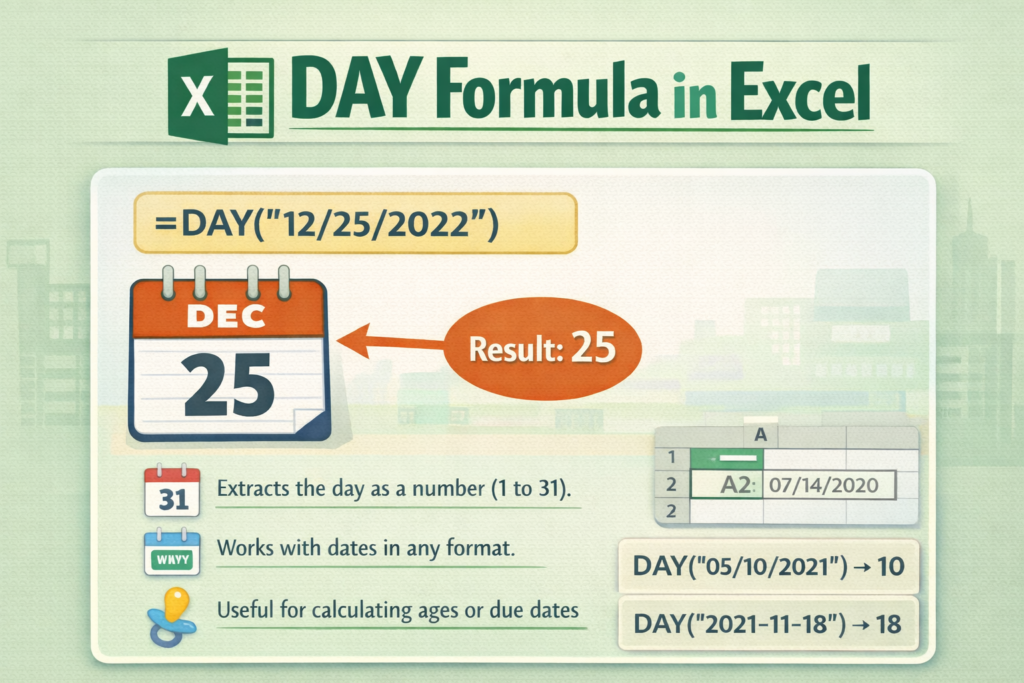

Working with dates is a daily task for many Excel users. Whether you manage attendance sheets, salary calculations, invoices, or reports, understanding how Excel handles dates can save a lot of time. One of the most useful date functions is the DAY formula in Excel. It helps you extract the day number from any valid date in seconds.
However, many beginners struggle with date formulas. Dates may look simple, but Excel stores them in a special way. Therefore, learning the DAY function properly can make your work faster and more accurate.
What Is the DAY Formula in Excel?
Understanding the DAY Function Basics
The DAY formula in Excel returns the day of the month from a given date. The result is always a number between 1 and 31. For example, if the date is 15-08-2025, the DAY function will return 15.
Excel internally stores dates as serial numbers. However, the DAY function reads the date value and extracts only the day portion. As a result, you do not need to manually split the date.
Syntax of the DAY Formula
The syntax is very simple:
DAY(serial_number)
Here, serial_number refers to a valid Excel date or a cell containing a date. For example:
=DAY(A1)
If cell A1 contains 10/02/2026, Excel will return 10.
Why the DAY Formula Is Important
The DAY function is widely used in reports, dashboards, and automation tasks. Moreover, it works perfectly with other Excel date functions like MONTH and YEAR. Therefore, learning it helps you build stronger formulas.
How to Use DAY Formula with Practical Examples
Basic Example with a Date Cell
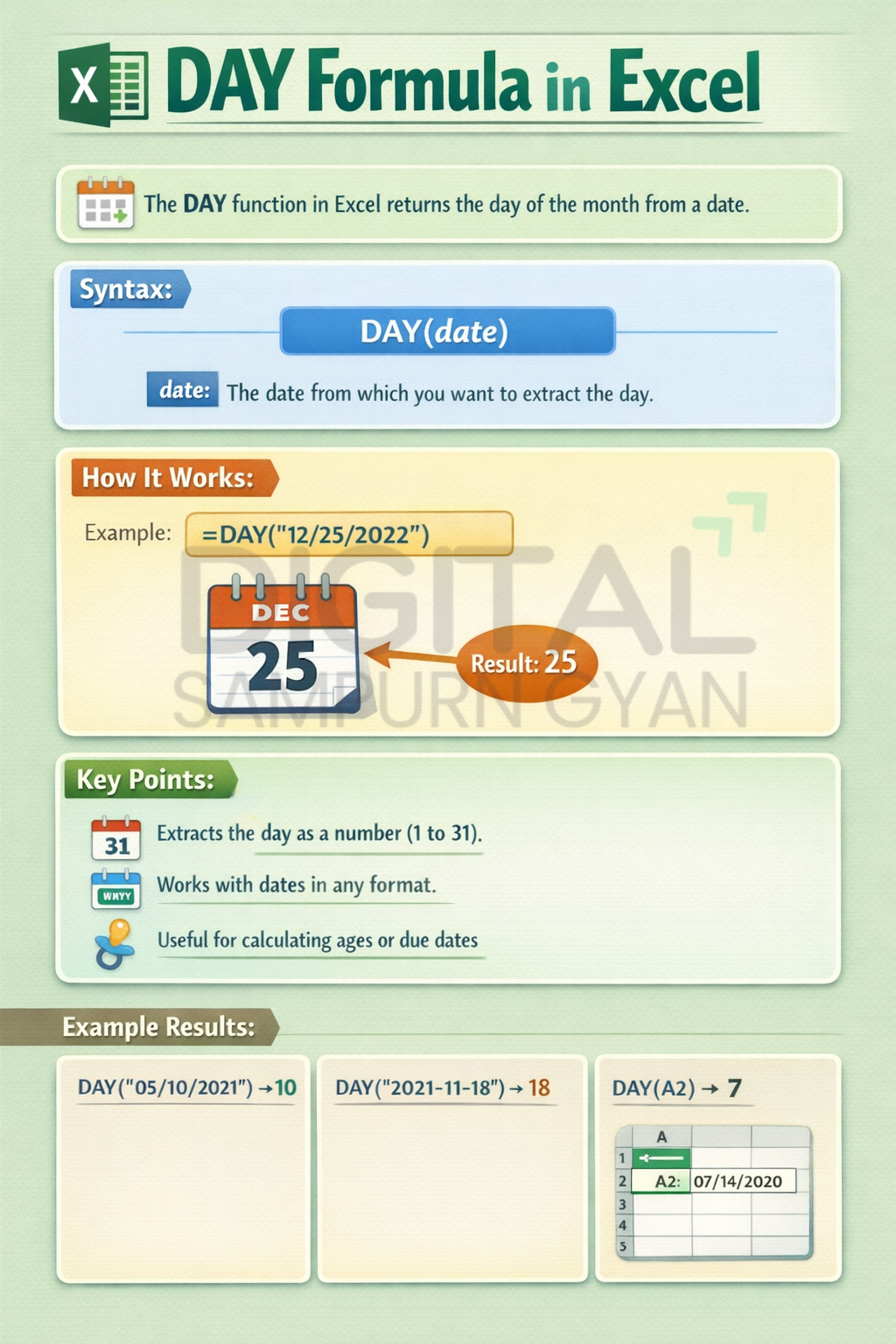
Suppose cell A2 contains the date 25/12/2025. When you use:
=DAY(A2)
Excel will return 25. This method works even if the date is formatted differently, such as 25-Dec-25 or 2025/12/25.
Using DAY with Today’s Date
Excel also allows dynamic dates. For example:
=DAY(TODAY())
This formula returns the current day of the month automatically. As a result, it is very useful in attendance tracking and daily reports.
Extracting Day from Text Dates
Sometimes dates are imported as text. In such cases, DAY alone may not work. However, you can combine it with DATEVALUE:
=DAY(DATEVALUE(A1))
This approach converts text into a date first. Therefore, the DAY function works correctly.
Common Use Cases of DAY Formula in Excel
Attendance and Payroll Calculations
Many companies calculate attendance based on specific days. For example, extracting the joining day or salary processing day is easy with the DAY formula. Moreover, it reduces manual errors.
Invoice and Due Date Tracking
Invoices often depend on billing cycles. Using the DAY function, you can identify payment dates quickly. For example, checking whether a bill was generated before or after a certain day becomes simple.
Data Analysis and Reporting
In Excel dashboards, filtering data by day is common. The DAY formula helps group transactions by date. As a result, reports become clearer and more structured.
Combining DAY Formula with Other Excel Functions
DAY with IF Function
You can use DAY with logical conditions. For example:
=IF(DAY(A1)<=15,”First Half”,”Second Half”)
This formula helps divide a month into two parts. Therefore, it is useful in sales and performance analysis.
DAY with MONTH and YEAR
Often, you need complete date breakdowns. For example:
=DAY(A1)&”-“&MONTH(A1)&”-“&YEAR(A1)
This creates a custom date format. Moreover, it helps when exporting data to other systems.
DAY with TEXT Function
You can also control output format. For example:
=TEXT(A1,”dd”)
Although this is not the DAY function, it produces similar results. However, DAY is preferred for calculations, while TEXT is better for display.
Common Errors and How to Fix Them
#VALUE! Error
This error usually appears when Excel cannot recognize the date. Therefore, always ensure the cell contains a valid date. Using DATEVALUE can solve this issue.
Incorrect Results Due to Date Format
Sometimes Excel displays a date correctly but stores it as text. As a result, DAY may return unexpected values. Converting text to date format fixes this problem.
Regional Date Settings
Different regions use different date formats. Therefore, always double-check system settings if formulas behave strangely.
Tips to Use DAY Formula Efficiently
Use Named Cells
Using named ranges instead of cell references makes formulas easier to understand. Moreover, it reduces confusion in large worksheets.
Combine with Conditional Formatting
Highlight rows based on specific days using the DAY formula. As a result, important dates stand out visually.
Avoid Hardcoding Dates
Always refer to cells or use functions like TODAY(). This keeps formulas dynamic and future-proof.
FAQs: DAY Formula in Excel
What does the DAY formula do in Excel?
The DAY formula extracts the day number from a date. It returns a value between 1 and 31. This function is useful for date analysis, reporting, and automation tasks.
How to use DAY formula for today’s date in Excel?
You can use =DAY(TODAY()). This formula automatically returns the current day of the month. It updates daily without manual changes.
Why does DAY formula return an error?
Errors usually occur when the date is stored as text. Converting the text to a date using DATEVALUE often resolves the issue.
Can DAY formula work with text dates?
Yes, but only after converting text into a valid date. Combining DAY with DATEVALUE ensures accurate results.
What is the difference between DAY and TEXT functions?
DAY returns a numeric value for calculations. TEXT formats dates for display. Therefore, DAY is better for logic-based formulas.
Can I use DAY formula for payroll calculations?
Yes, it is commonly used in payroll systems. Extracting joining or salary processing days becomes quick and accurate.
Does DAY formula depend on date format?
No, it depends on the actual date value, not the display format. However, the date must be valid in Excel.
How to extract day from a date automatically?
Using =DAY(A1) is the simplest way. As long as A1 contains a valid date, Excel returns the correct day.
Final Thoughts
The DAY formula in Excel is small but powerful. It simplifies date handling and improves accuracy in everyday tasks. Once you understand how it works and how to combine it with other functions, your Excel skills move to the next level. Start using it in real files, and the confidence comes naturally.