
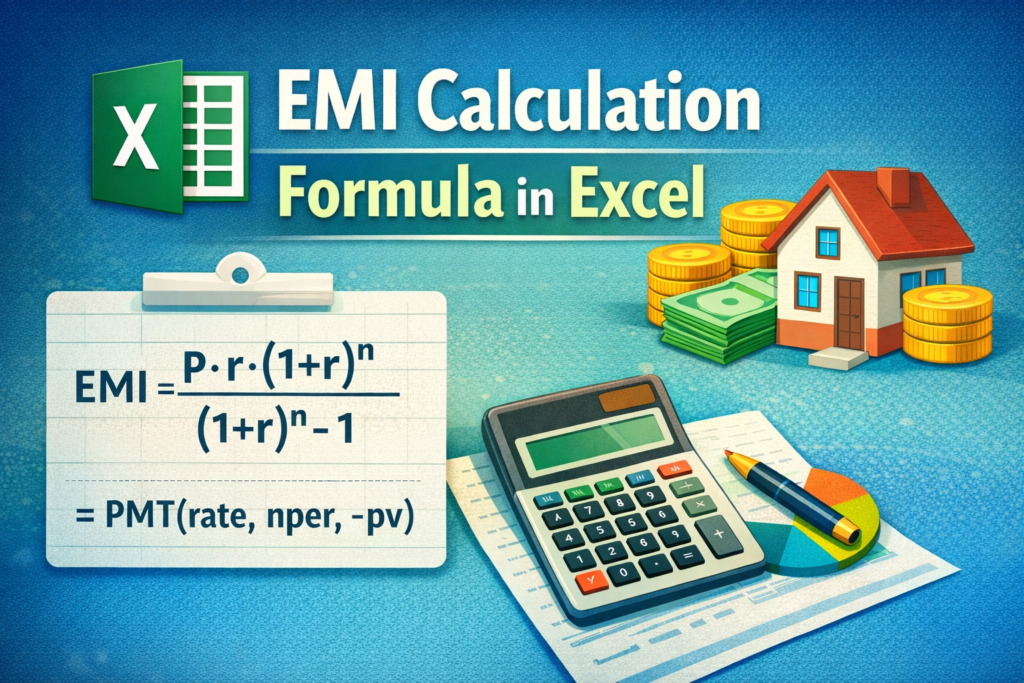

Understanding how much you need to pay every month on a loan can remove a lot of financial stress. Whether it is a home loan, car loan, or personal loan, EMI planning helps you stay in control. Excel makes this process simple, accurate, and flexible. With the right EMI calculation formula in Excel, you can compare loans, adjust tenure, and plan your budget confidently.
Below is a practical, human-friendly guide that explains EMI calculation in Excel step by step, with real-life context and easy examples.
Table of Contents
ToggleWhat Is EMI and Why EMI Calculation Matters
Understanding EMI in Simple Words
EMI stands for Equated Monthly Installment. It is the fixed amount you pay every month to repay a loan. This amount includes both principal and interest. However, in the early months, interest takes a larger share, while later payments reduce the principal faster.
Why Accurate EMI Calculation Is Important
EMI calculation helps you understand whether a loan fits your monthly budget. For example, a slightly longer tenure may reduce EMI but increase total interest. Therefore, knowing the exact EMI allows smarter decisions. It also avoids surprises after loan approval.
Why Excel Is Ideal for EMI Calculation
Excel is widely available and easy to use. Moreover, it allows instant recalculation when you change loan amount, interest rate, or tenure. As a result, Excel EMI formulas are preferred by finance professionals and individuals alike.
EMI Calculation Formula in Excel Explained Clearly
The Standard EMI Formula
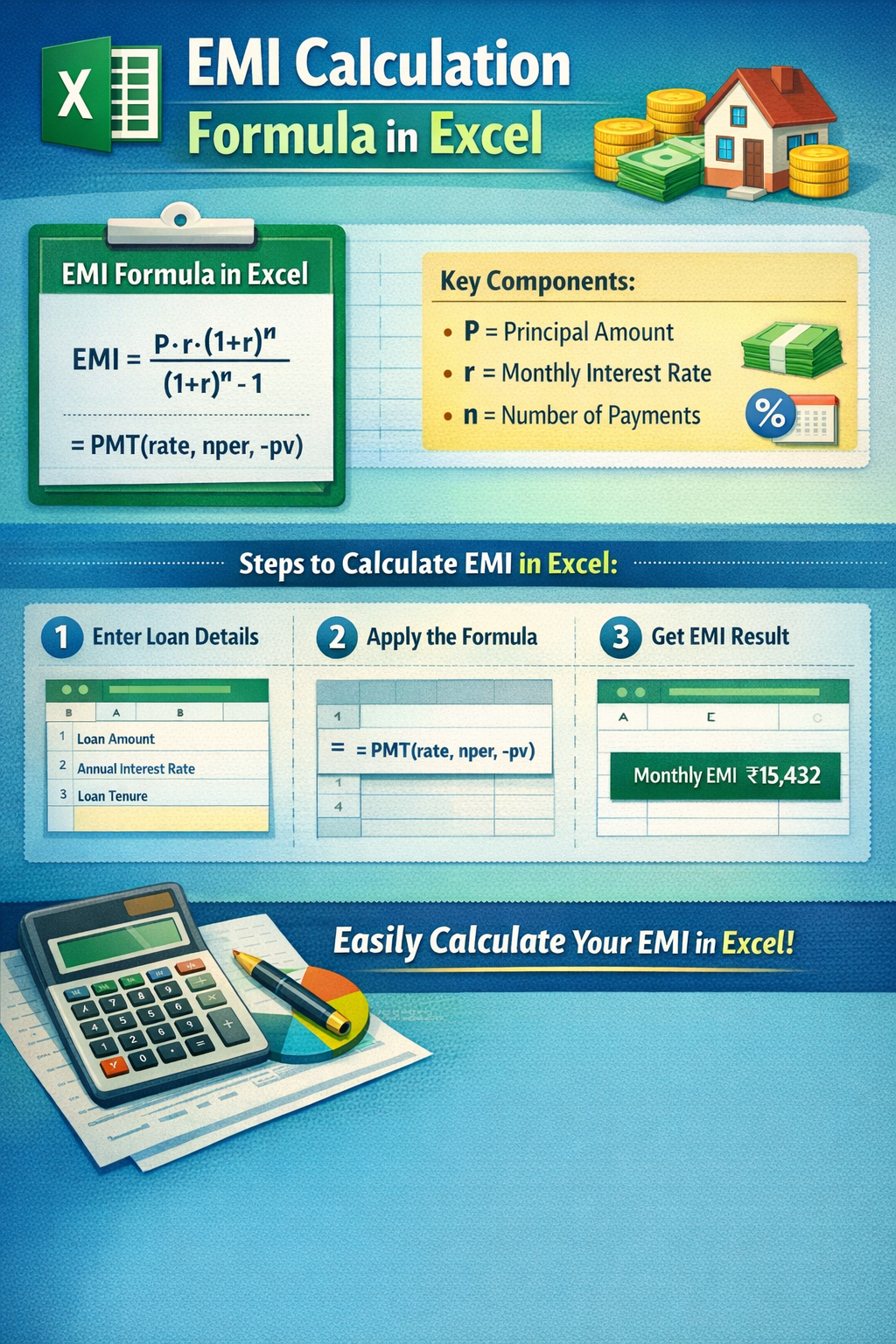
The EMI calculation formula used everywhere is:
EMI = [P × R × (1 + R)^N] / [(1 + R)^N – 1]
Where:
P = Loan amount (principal)
R = Monthly interest rate
N = Loan tenure in months
Although this looks complex, Excel simplifies it completely.
Converting Annual Interest Rate to Monthly
Most banks quote annual interest rates. However, EMI works on a monthly basis. Therefore, divide the annual rate by 12 and then by 100.
For example, 9% annually becomes 9/12/100 = 0.0075 monthly.
How Excel Handles This Formula
Excel performs these calculations instantly using built-in functions. As a result, you avoid manual errors and save time. This is why learning the EMI calculation formula in Excel is extremely useful for loan planning.
How to Calculate EMI in Excel Using the PMT Function
Understanding the PMT Formula
Excel offers the PMT function, which is designed for loan EMI calculation. The syntax is:
=PMT(rate, nper, pv)
Where:
rate = Monthly interest rate
nper = Number of months
pv = Loan amount
This function returns the EMI directly.
Step-by-Step Example in Excel
Assume:
Loan amount = ₹5,00,000
Annual interest rate = 10%
Tenure = 5 years
Monthly rate = 10% / 12 / 100
Tenure = 5 × 12 = 60 months
Excel formula:
=PMT(10%/12/100, 60, 500000)
Excel will show EMI as a negative number because it represents cash outflow. However, you can add a minus sign to display a positive value.
Why PMT Is the Best Option
The PMT function is accurate and flexible. Moreover, it allows you to test multiple loan scenarios instantly. As a result, it is the most commonly used EMI formula in Excel.
Creating an EMI Calculator in Excel (Practical Use Case)
Designing a Simple EMI Calculator Sheet
You can create a basic EMI calculator in Excel using three input cells: loan amount, interest rate, and tenure. Then, use the PMT formula in the result cell. This setup helps you simulate real-life loan decisions.
Adding Flexibility with Cell References
Instead of typing numbers directly into the formula, use cell references. For example:
=PMT(B2/12/100, B3*12, B1)
Now, changing any value updates EMI instantly. Therefore, Excel becomes a dynamic loan calculator.
Benefits for Personal and Professional Use
This Excel EMI calculator is useful for individuals, accountants, and sales teams. In addition, it helps compare multiple bank offers quickly. As a result, decision-making becomes faster and more transparent.
Common Mistakes to Avoid While Calculating EMI in Excel
Using Annual Interest Rate Directly
One common mistake is entering the annual interest rate directly into the PMT formula. However, Excel requires a monthly rate. This error can significantly inflate EMI values.
Incorrect Tenure Calculation
Another mistake is entering loan tenure in years instead of months. Always convert years into months before calculation. Otherwise, EMI results will be completely inaccurate.
Ignoring Interest Type Differences
Some loans follow reducing balance interest, while others use flat rates. Excel EMI formulas work for reducing balance loans. Therefore, ensure the loan structure matches the formula you are using.
FAQ: EMI Calculation Formula in Excel
How do I calculate EMI in Excel without PMT function?
You can manually apply the EMI formula using Excel operators. However, this method is more error-prone. Using the PMT function is safer and faster for accurate EMI calculation in Excel.
What is the Excel formula for home loan EMI calculation?
The home loan EMI calculation formula in Excel uses the PMT function. For example, =PMT(rate/12/100, years*12, loan amount) gives accurate results for reducing balance home loans.
Why does Excel show EMI as a negative value?
Excel treats EMI as cash outflow. Therefore, it displays the result as negative. You can add a minus sign before the PMT formula to display a positive EMI amount.
Can Excel calculate EMI with changing interest rates?
Excel can handle changing rates if you create a repayment schedule. However, the standard EMI calculation formula in Excel assumes a fixed interest rate throughout the loan tenure.
How accurate is EMI calculation in Excel?
Excel EMI calculations are highly accurate when correct inputs are used. Banks also rely on similar formulas. Therefore, Excel is reliable for EMI planning and comparison.
Can I calculate car loan EMI in Excel?
Yes, car loan EMI calculation in Excel uses the same PMT formula. Simply change the loan amount, interest rate, and tenure based on the car loan terms.
What is the best Excel EMI calculator format?
The best format includes input cells for loan amount, interest rate, and tenure, with EMI output using the PMT formula. This structure ensures flexibility and clarity.
Final Thoughts on EMI Calculation in Excel
EMI planning becomes simple when you understand the EMI calculation formula in Excel. With just one formula, you can analyze affordability, compare loan offers, and avoid financial strain. Excel gives you clarity before committing to long-term repayments. If you regularly deal with loans, creating your own Excel EMI calculator is a smart and time-saving habit.