

A slow WiFi connection on a laptop can feel frustrating, especially when you are working, attending online classes, or streaming videos. Many people think the problem is always with the internet provider, but in reality, several small issues inside your laptop or network setup can reduce speed. The good news is that most of these problems are easy to fix. With a few smart changes, you can noticeably increase WiFi speed on your laptop and enjoy a smoother internet experience.
1. Check Basic Issues That Affect Laptop WiFi Speed
Before trying advanced methods, it is important to understand the basic reasons behind slow internet. Often, simple problems can reduce your laptop’s WiFi performance without you realizing it.
Distance from Router and Signal Strength
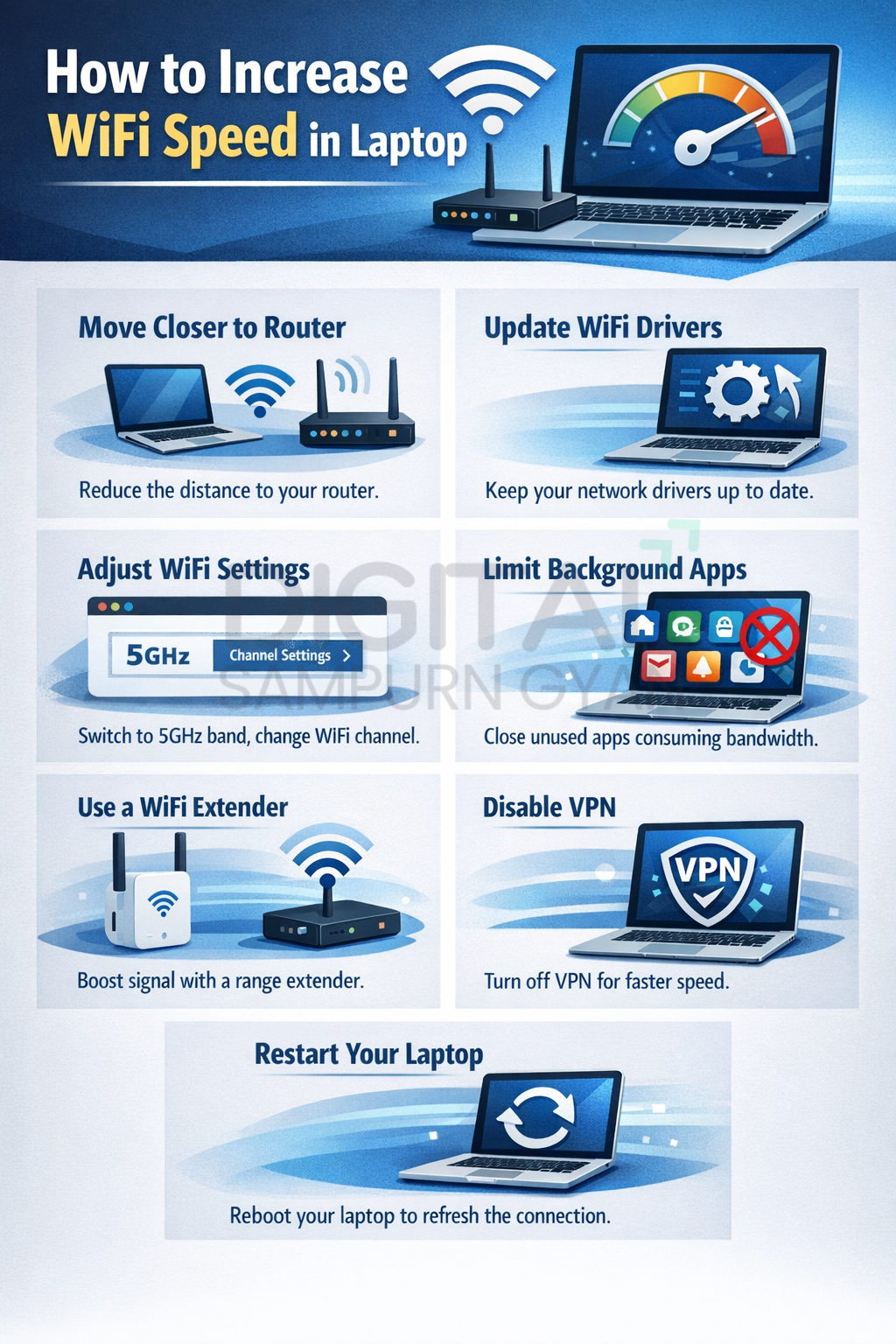
The distance between your laptop and the router plays a major role in internet speed. If your laptop is far from the router, the signal becomes weak. As a result, your browsing and downloads become slow. Try using your laptop closer to the router or in the same room.
Moreover, walls, furniture, and electronic devices can block WiFi signals. For example, thick walls or metal objects can reduce signal strength significantly. Therefore, keeping the router in an open and central place can improve speed.
Too Many Connected Devices
When many devices are connected to the same WiFi network, the speed gets divided. Smartphones, smart TVs, tablets, and other laptops can consume bandwidth in the background. If possible, disconnect unused devices from your network.
In addition, some devices may download updates automatically, which can slow down your laptop internet. Checking connected devices regularly can help you maintain better WiFi speed.
Temporary Network Glitches
Sometimes, slow WiFi is caused by temporary network issues. Restarting your router and laptop can fix these glitches quickly. This simple step refreshes the connection and often improves speed instantly.
2. Optimize Laptop Settings for Faster WiFi
Your laptop’s internal settings can also affect WiFi speed. By adjusting a few options, you can make your laptop connect more efficiently to the internet.
Update WiFi Drivers
Outdated WiFi drivers are a common reason for slow internet. Manufacturers release updates to improve performance and fix bugs. If your laptop uses old drivers, it may not handle modern WiFi networks properly.
You can update drivers through the device manager or the laptop manufacturer’s website. After updating, you may notice better stability and speed.
Disable Power Saving Mode for WiFi
Many laptops reduce WiFi performance to save battery power. While this feature helps extend battery life, it can slow down your internet connection. You can change this setting in the power management options.
However, if you use your laptop mostly on battery, you should balance performance and power usage. Still, for better WiFi speed, disabling aggressive power saving is helpful.
Close Background Apps and Downloads
Background applications can silently consume internet bandwidth. For example, cloud storage apps, software updates, or streaming services can run without your knowledge. Closing unnecessary apps can free up bandwidth for your main tasks.
In addition, using task manager to check network usage can help you identify apps that slow down your internet.
3. Improve Router and Network Configuration
Your router plays a crucial role in laptop WiFi speed. Even if your laptop is powerful, a poorly configured router can limit your internet performance.
Change Router Placement
Router placement can significantly impact signal quality. Placing the router near the center of your home or office ensures even signal distribution. Avoid placing it near thick walls, corners, or metal objects.
Moreover, keeping the router at a higher position, such as on a shelf, can improve coverage. This small change can lead to noticeable speed improvements on your laptop.
Switch to a Less Crowded WiFi Channel
Many routers operate on crowded channels, especially in apartments or densely populated areas. When multiple networks use the same channel, interference occurs, which slows down WiFi speed.
You can log in to your router settings and change the WiFi channel manually. Choosing a less crowded channel can reduce interference and increase speed.
Use 5GHz Band Instead of 2.4GHz
Modern routers offer two frequency bands: 2.4GHz and 5GHz. The 2.4GHz band has a longer range but slower speed, while the 5GHz band offers faster speed with shorter range.
If your laptop supports 5GHz WiFi, connect to this band for better performance. For example, if you sit close to the router, the 5GHz network can provide much higher speed.
4. Advanced Techniques to Boost Laptop WiFi Speed
If basic fixes do not work, you can try advanced methods to further improve WiFi speed on your laptop.
Upgrade Your Router or Network Plan
Sometimes, the router itself is outdated and cannot handle high-speed internet. Older routers may not support modern WiFi standards like WiFi 5 or WiFi 6. Upgrading to a newer router can significantly increase speed and stability.
In addition, if your internet plan is slow, no setting can magically increase speed. Checking your internet plan and upgrading it if needed can make a big difference.
Use External WiFi Adapters
Some laptops have weak internal WiFi cards. In such cases, an external USB WiFi adapter can improve signal reception. These adapters are affordable and easy to use.
Moreover, external adapters often support newer WiFi standards, which can provide faster and more stable connections.
Reduce Interference from Other Devices
Devices like Bluetooth speakers, cordless phones, and microwaves can interfere with WiFi signals. If your laptop WiFi is slow, try moving such devices away from the router.
In addition, turning off unused wireless devices can reduce interference and improve speed.
5. Maintain Long-Term WiFi Performance on Your Laptop
Improving WiFi speed is not a one-time task. Regular maintenance can help you enjoy fast and stable internet on your laptop over time.
Keep Your System Clean and Updated
Regularly updating your operating system and software ensures better compatibility with WiFi networks. System updates often include performance improvements and security patches.
Moreover, removing unnecessary software and malware can improve overall system performance, which indirectly affects internet speed.
Monitor Network Usage Regularly
Keeping an eye on your network usage helps you identify problems early. For example, if your internet suddenly becomes slow, you can check whether someone is using excessive bandwidth.
In addition, using network monitoring tools can give you deeper insights into your WiFi performance.
Reset Network Settings When Needed
If your laptop WiFi behaves strangely, resetting network settings can help. This process removes old configurations and reconnects your laptop to the network fresh.
However, you should use this option carefully because it removes saved WiFi passwords and network settings.
Frequently Asked Questions (FAQs)
1. How can I increase WiFi speed in my laptop without changing the router?
You can improve laptop WiFi speed by updating drivers, closing background apps, disabling power saving mode, and moving closer to the router. These steps optimize your laptop performance without changing the router.
2. Why is my laptop WiFi slower than my phone?
Your laptop may have outdated drivers, weaker WiFi hardware, or power-saving settings that reduce speed. Updating drivers and adjusting network settings can help your laptop achieve similar speed to your phone.
3. How to boost WiFi signal strength on a laptop?
You can boost signal strength by reducing distance from the router, avoiding obstacles, using a 5GHz network, and minimizing interference from other devices. External WiFi adapters can also improve signal quality.
4. Does updating Windows increase WiFi speed on a laptop?
Sometimes yes. Windows updates can fix bugs and improve network performance. However, speed improvements depend on the nature of the update and your laptop hardware.
5. How to fix slow internet on a laptop but fast on other devices?
This usually happens due to laptop-specific issues like outdated drivers, malware, or incorrect settings. Scanning for malware, updating drivers, and resetting network settings can solve the problem.
6. Can antivirus software slow down laptop WiFi speed?
Some antivirus programs monitor internet traffic and may reduce speed slightly. Adjusting antivirus settings or using lightweight security software can help improve WiFi performance.
7. How to increase WiFi speed on an old laptop?
On older laptops, updating drivers, using external WiFi adapters, reducing background processes, and upgrading the router can improve speed. Hardware limitations may still affect performance.
8. Is 5GHz WiFi better for laptops?
Yes, 5GHz WiFi offers faster speeds and less interference compared to 2.4GHz. However, it has a shorter range, so it works best when your laptop is close to the router.
A fast WiFi connection on your laptop is possible without technical expertise. Small adjustments in laptop settings, router configuration, and network habits can create a noticeable difference. If you follow these practical steps consistently, your laptop internet will feel faster, smoother, and more reliable in daily use.